GETTING STARTED · PRACTICAL GUIDE
How to set up multistreaming with OBS and Streamster
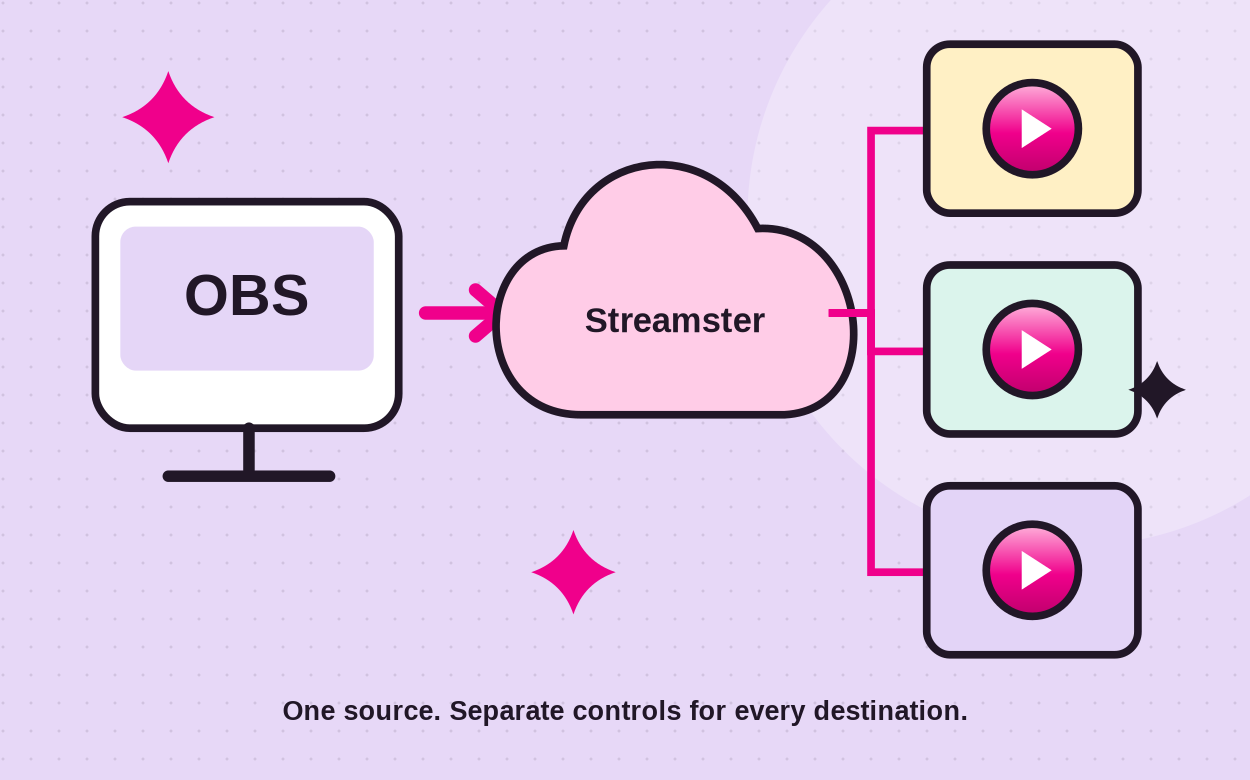
A useful multistream setup has one clear video source and a separate control for every destination. I would build it in that order: check OBS locally, connect Streamster, then add and test one platform at a time. Here is a practical workflow you can repeat without guessing which part of the chain is live.
Create a Streamster account + $10 service credit →
Understand the three parts of the setup
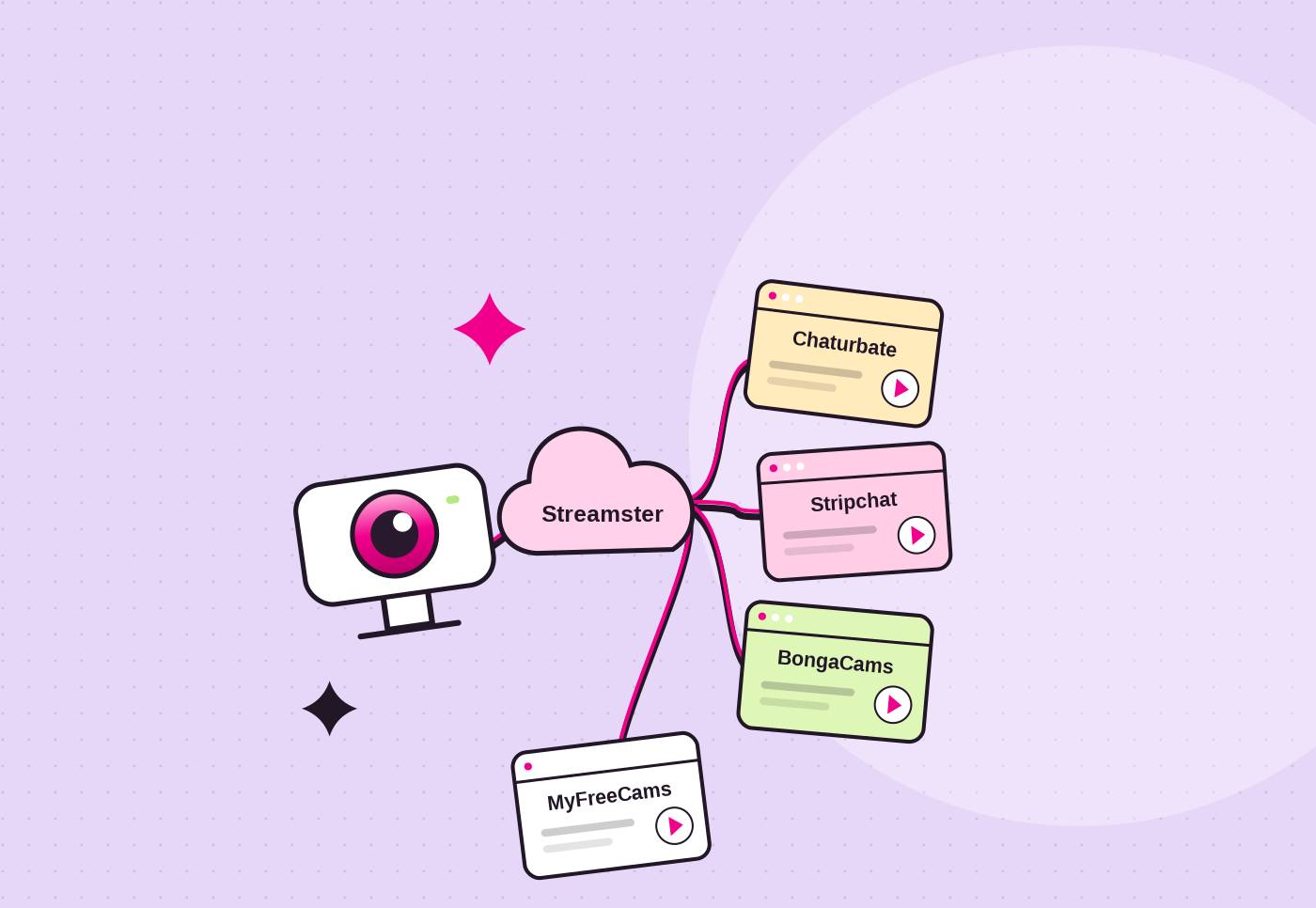
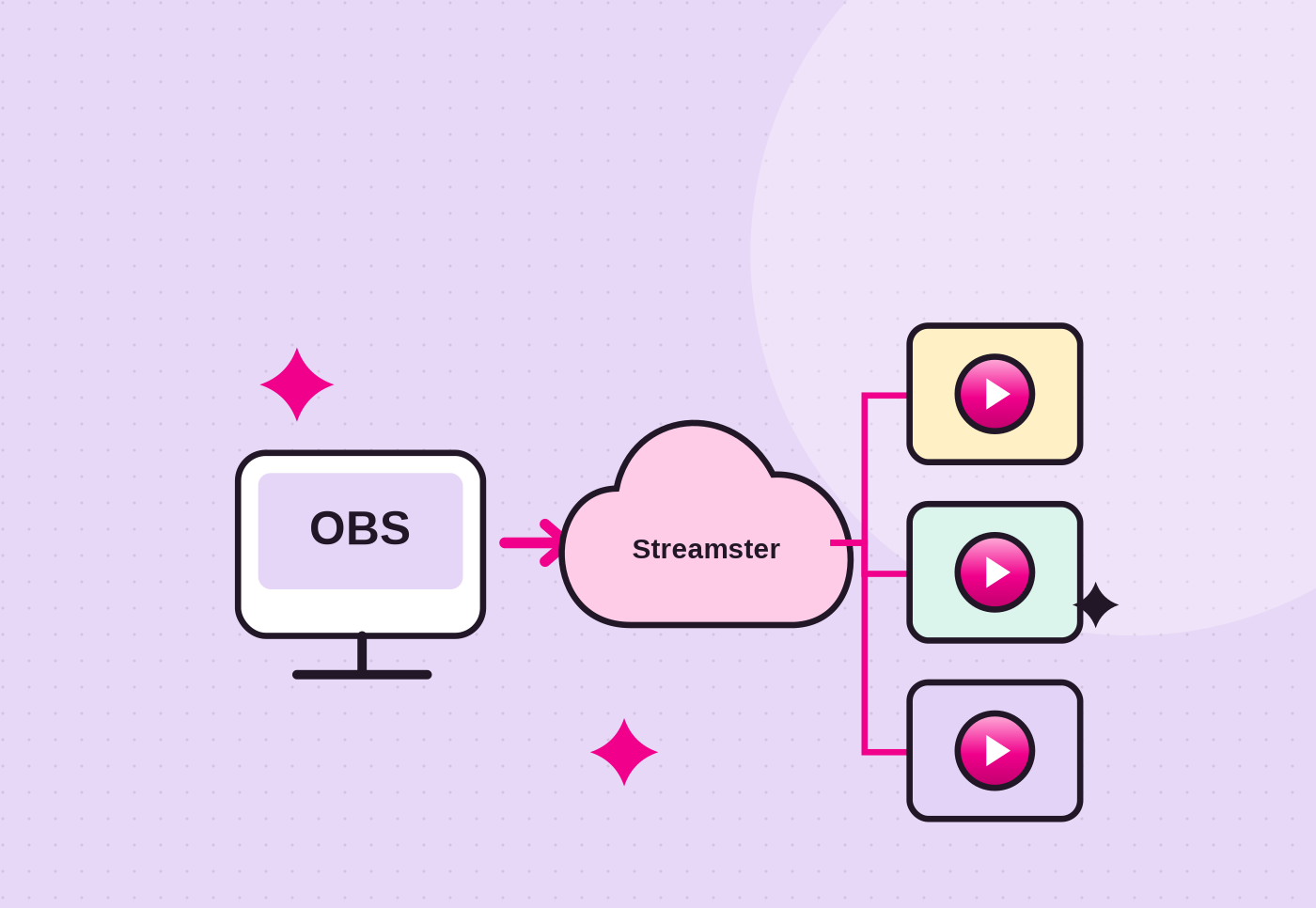
OBS combines the camera, microphone and scenes. It sends an encoded feed to Streamster. Streamster then distributes that feed to the destinations you enable. This cloud route avoids sending a separate full stream from your connection to every platform.
Streaming support, chat support and account approval are separate matters. Before adding a destination, confirm that the account can broadcast and check the platform’s current rules for simultaneous streaming. Keep its dashboard open during the first test.
1. Finish the local OBS setup
Create a simple scene with your camera and microphone. Record a short sample and listen to it: a moving meter does not tell you whether the voice is clear or the wrong microphone is selected. Check that desktop notifications and private windows cannot enter the capture.
Choose resolution, frame rate and bitrate that your connection and selected destinations support. Leave upload headroom for chat and normal network variation. Higher settings are useful only when the whole chain can sustain them.
2. Send OBS to Streamster
In the Streamster web app, select OBS Studio as the source. Copy the Stream URL and Stream Key into OBS → Settings → Stream using the server fields required by the current interface. Apply the settings and start the feed from OBS.
Check that Streamster receives both picture and sound before enabling a destination. Treat stream keys like passwords: do not put them in screenshots or messages. If one is exposed, replace it using the issuing service’s controls.
3. Add each platform as its own channel
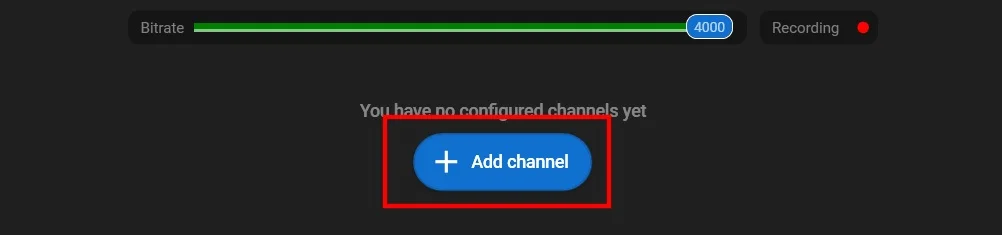
Open Live stream → Add channel in Streamster. Choose the platform and enter the stream information from that platform’s broadcaster dashboard. Label or organise your destinations so you can identify them quickly during a session.
Chaturbate
Open Broadcast Yourself → Use External Encoder to Broadcast → View RTMP/OBS broadcast information and stream key. Use the broadcast token as the key for the Chaturbate channel.
BongaCams
In BongaModels, open Broadcast Yourself → External Encoder. Copy the stream key into the BongaCams channel. The official setup also includes Start Streaming on BongaCams when you are ready to be public.
CAM4
Open Broadcast → External Encoder → Get Stream Key. Add a CAM4 channel with that key. The official setup also requires Go Live on CAM4.
4. Test one destination, then the next
Enable one channel and check its actual room preview, not just the OBS output. Confirm framing, sound and the platform’s public/live status. Then repeat with the second channel. A successful feed into Streamster does not by itself prove that every destination is public.
Keep a small checklist beside your controls: source received, channel enabled, room live, sound checked. If one destination fails, you can work on that connection without changing a source that is already working elsewhere.
5. Rehearse stopping and changing modes
Learn how to stop an individual destination and how to stop the source. Before accepting a private session, make sure other destinations are stopped or switched only as permitted by each platform’s rules. Check the actual room state after the change.
At the end, stop the destination channels, stop the OBS feed and confirm that each room is offline. A short shutdown routine is easy to repeat and removes uncertainty about which service is still receiving video.
Keep the first setup manageable
Begin with two destinations and a simple scene. Once the workflow is comfortable, review which chat tools and service plan fit your routine. A multichat feature can help where supported, but it does not make every platform’s moderation and private-show controls identical.
New Streamster accounts registered with code 31793f8e00a1 receive $10 in service credit under the referral offer. It can pay for Streamster services; it is not a cash payout. The code is already included in our registration link.
31793f8e00a1