LOVENSE · CONNECTION GUIDE
How to connect Lovense Remote and check compatibility
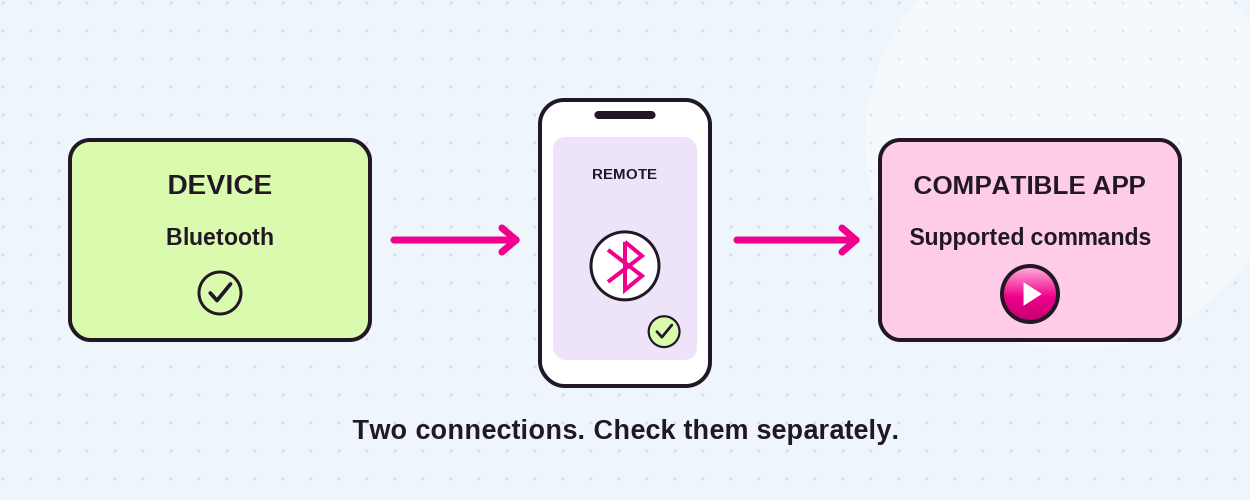
A device can appear in Lovense Remote and still be unavailable to another app. That usually means the first connection is working, but the second one has not been set up yet. I would check these two links separately: device to Remote, then Remote to the software you want to use.
What the technology actually connects
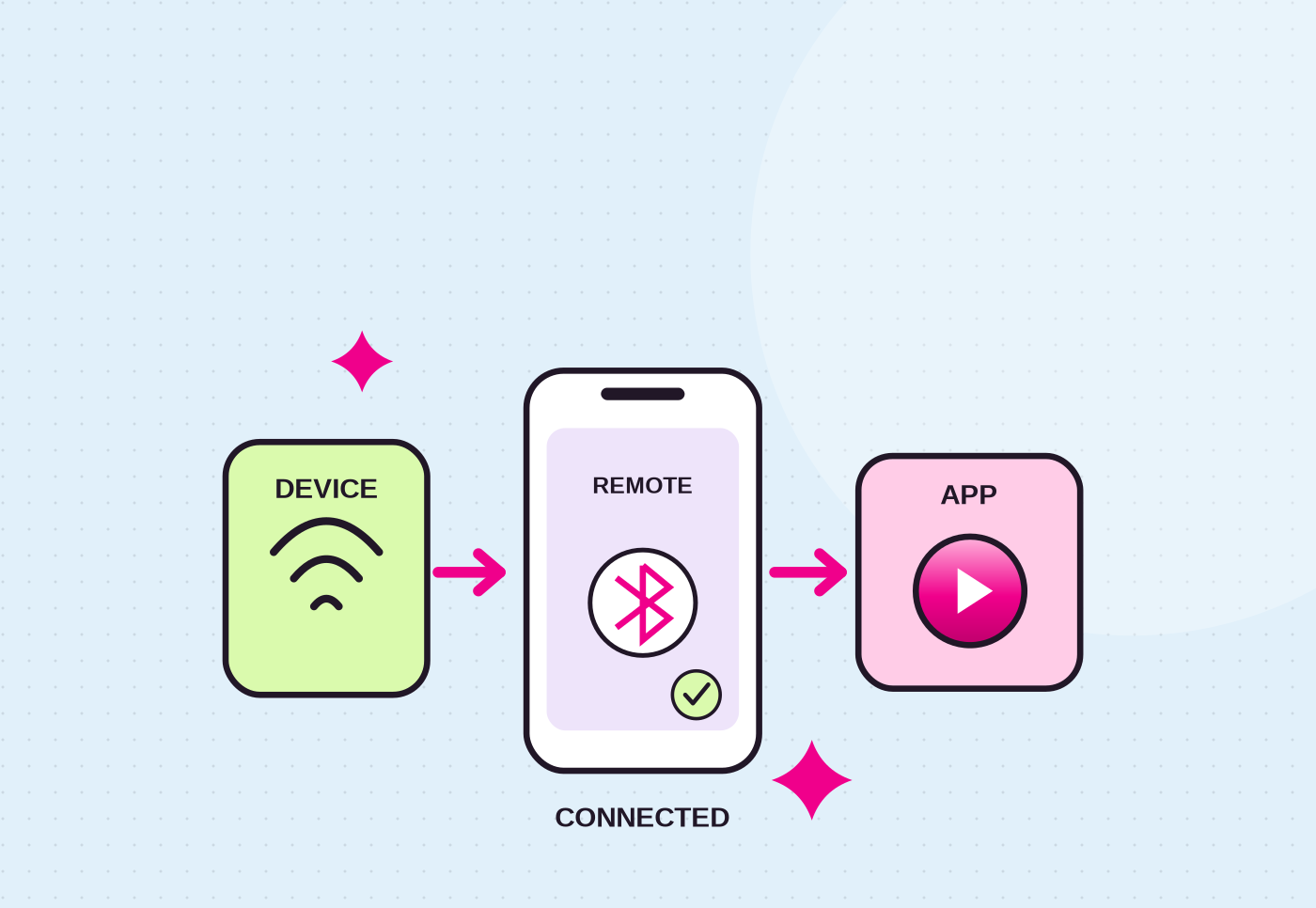
Lovense Remote acts as a bridge. It connects to the device over Bluetooth, while a compatible application sends supported commands through its Lovense integration. The application decides which events trigger a response; the device supplies the functions it physically supports.
This is why “works with Lovense” is only the start of a compatibility check. A vibration-only device cannot acquire a motor it does not have. Likewise, a software integration may support only part of a device’s feature set. Check the integration’s current documentation and your exact model before choosing a setup.
Check these three things first
- Device: identify the exact model and charge it. Lovense states that all its toys work with Remote; support inside another application is a separate question.
- Phone or computer: install the official Remote version for your operating system. The manufacturer lists iOS, Android, macOS and Windows versions; its Windows setup requires a Lovense USB Bluetooth Adapter.
- Application: check the supported operating systems, connection method and device functions in that application’s own instructions. A desktop-only integration does not become a mobile integration just because Remote is on your phone.
First, connect the device to your phone
- Turn on the device and Bluetooth on your phone. Keep the two close while pairing.
- Open Lovense Remote and use its device connection control to search for the device. Connect from inside the app, following the current on-screen prompts.
- Confirm that Remote shows the device as connected. Make a short, low-level test from the app before opening another application.
If this first test does not work, stay at this stage. A QR code or computer setting will not fix a missing Bluetooth connection. Check charge, app permissions and whether another phone or application is already using the device.
QR code, Game Mode or desktop connection?
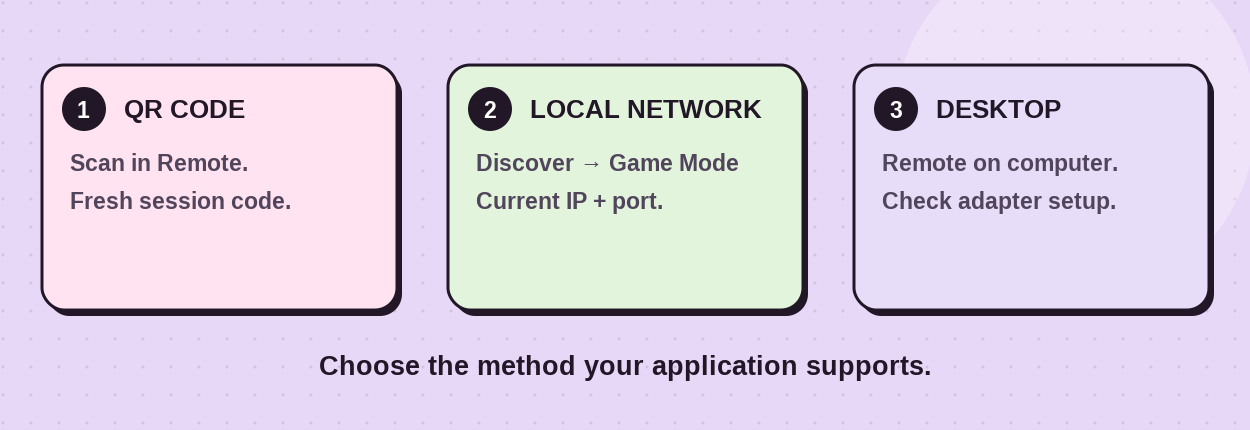
Use the method requested by the application. These are alternative integration paths, not three mandatory steps.
QR-based connection: open the application’s Lovense connection screen and scan its code with Remote’s scanner. A connection code grants access to a session, so use the code generated by the application you intend to connect. If it expires, generate a fresh one there.
Local Game Mode: the official demo uses Remote → Discover → Game Mode → Enable LAN. It then asks for the IP address and port shown by Remote. The application and phone need a reachable local-network connection for this method. Use the values from your current session, not numbers copied from a tutorial.
Desktop route: some applications communicate with Remote running on the computer itself. Follow the application’s desktop instructions and the manufacturer’s adapter requirements. Do not mix desktop addresses with the IP address shown by a phone.
A useful test takes less guesswork
Check in this order: the device responds in Remote; the application reports a connection; its own test produces the expected response; and its stop or disconnect control ends that response. This separates a pairing problem from an integration problem.
If the integration offers several device functions, test the one your model supports. An interface with many controls is not evidence that every connected device can use all of them. Keep the app and device controls within reach throughout the test.
When something does not connect
Remote cannot find the device
Start with Bluetooth, charge and the app’s permissions. Bring the device closer and check whether it is connected elsewhere. Restart the device and Remote, then repeat pairing.
Remote works, but the other application does not
Recheck the selected connection method. For a local connection, confirm the current IP and port, the same reachable network, and any local-network permission prompt. A guest Wi-Fi network may isolate devices from each other.
The connection works, but one function does not
Compare the device’s supported functions with the integration’s requirements. Update the application and Remote, then repeat the application’s built-in test. Record app versions and the exact error before contacting support.
Keep control of the connection
Only grant control to an application or person you have chosen. Do not post active connection codes or screenshots containing session details. When finished, disconnect the integration and turn off the local-control mode if you no longer need it.
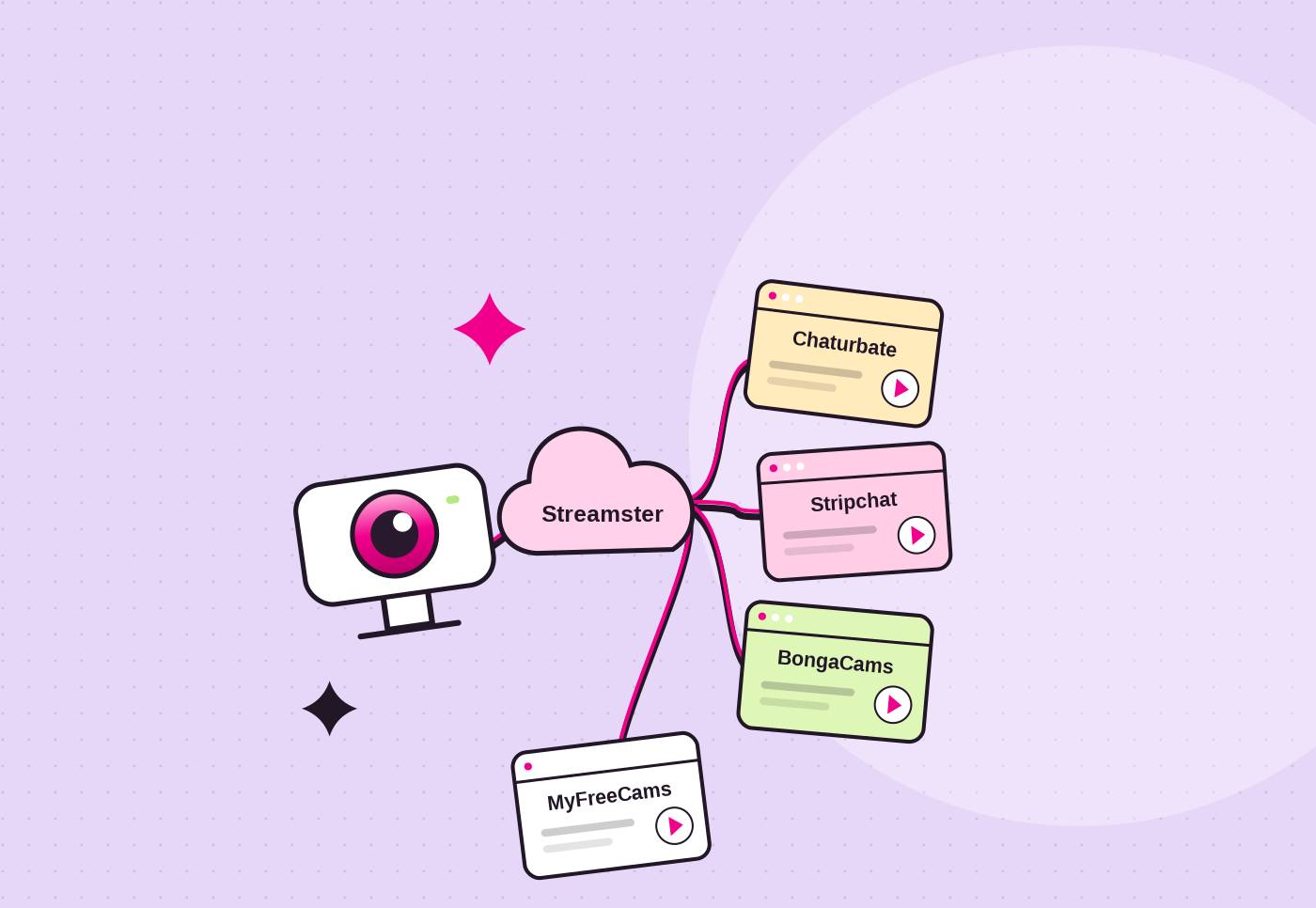
For a broadcast setup, the workflow is different. Our guide to connecting Lovense to a stream covers Stream Master and the streaming-side configuration.