GETTING STARTED · PRACTICAL GUIDE
How to register as a CAM4 model
I would prepare the account, verification and first broadcast as three separate tasks. That makes the process easier to follow: you can deal with documents before thinking about the camera, and check your room before making it public. Here is the route from registration to a ready-to-stream profile.
Before opening the registration form
Choose a public name you are comfortable using consistently. A separate creator email and a unique password help keep account administration organised. Prepare a valid government-issued photo ID and a device with a camera for the verification process.
All performers must be adults and meet the platform’s requirements. If someone will appear with you, plan their approval too: your own verified account does not cover another person.
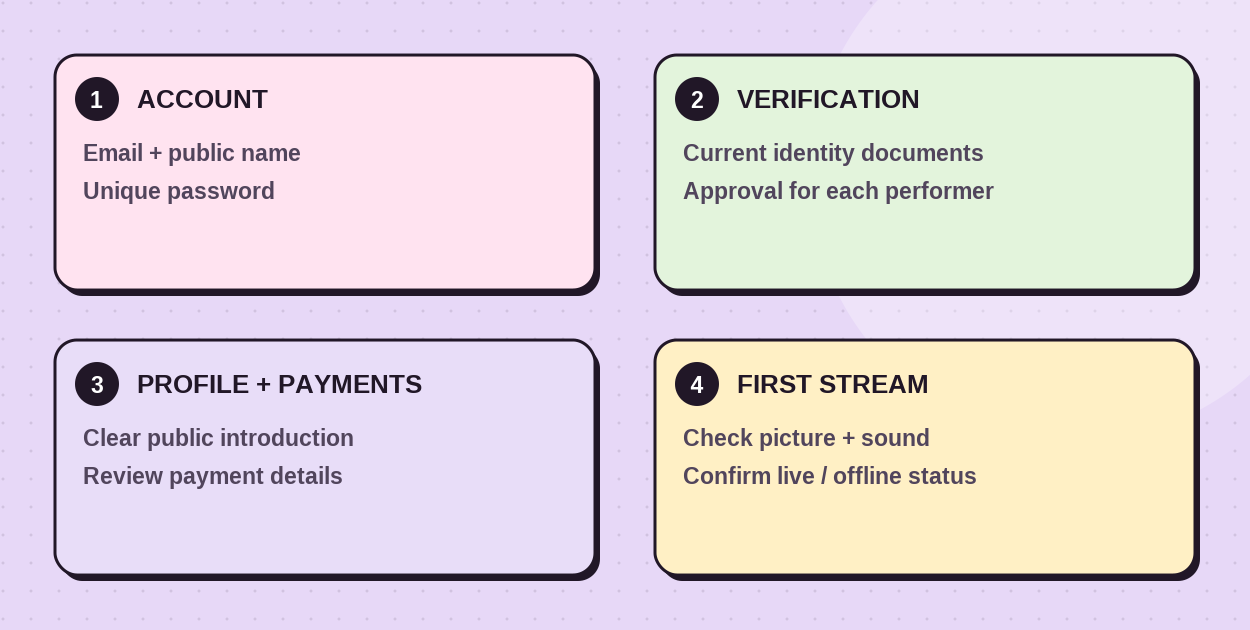
1. Create the account and confirm your email
Follow the CAM4 model-registration link on this page. Complete the account form and confirm the email address using the message from CAM4. Keep that mailbox accessible: it is part of managing the account, not just a one-time registration step.
After email confirmation, CAM4’s Profile Completion Wizard guides you through the remaining setup. You can also find it in the Broadcaster Dashboard. Work through the items in the order shown in your account; labels can change as the interface is updated.
2. Complete broadcaster approval
Upload the identity material requested by CAM4 and complete its current identity-check flow. The official instructions call for a clear, complete, colour image of a valid ID and a verification selfie. Avoid glare, cropped edges or details hidden by a finger.
Read and complete the required performer agreement and release forms. Each person appearing in a broadcast needs their own approved documentation. If an item needs correcting, use the reason shown in the account to fix that item before resubmitting.
- Use your legal details in verification and payment fields; keep your stage name for the public profile.
- Submit documents only through the official verification flow. LiloDesign does not need your ID or account password.
3. Make the room easy to understand
Add a clear profile picture, a short introduction and a schedule you can maintain. The profile wizard also covers categories and a tip menu. Start with a small, readable menu rather than filling every available field at once.
A useful introduction answers three simple questions: who you are on camera, what kind of atmosphere viewers can expect, and when you plan to be back. You can refine it after your first broadcasts, when you know which questions visitors actually ask.
4. Set up payments before you need them
Broadcaster approval and payment verification are related but separate tasks. Review the payment options available in your account and complete the required details. CAM4’s public guidance lists a $50 minimum payout; availability, processing and any method-specific requirements should be checked in your own dashboard.
Save a private note of the selected method and the details you entered. That makes it easier to spot a spelling mismatch without reopening your documents during a broadcast.
5. Check the picture, sound and public status
Make a short local recording first. Listen through headphones, check lighting and remove private information from the frame. Then open CAM4’s broadcast interface and follow its preview and live controls.
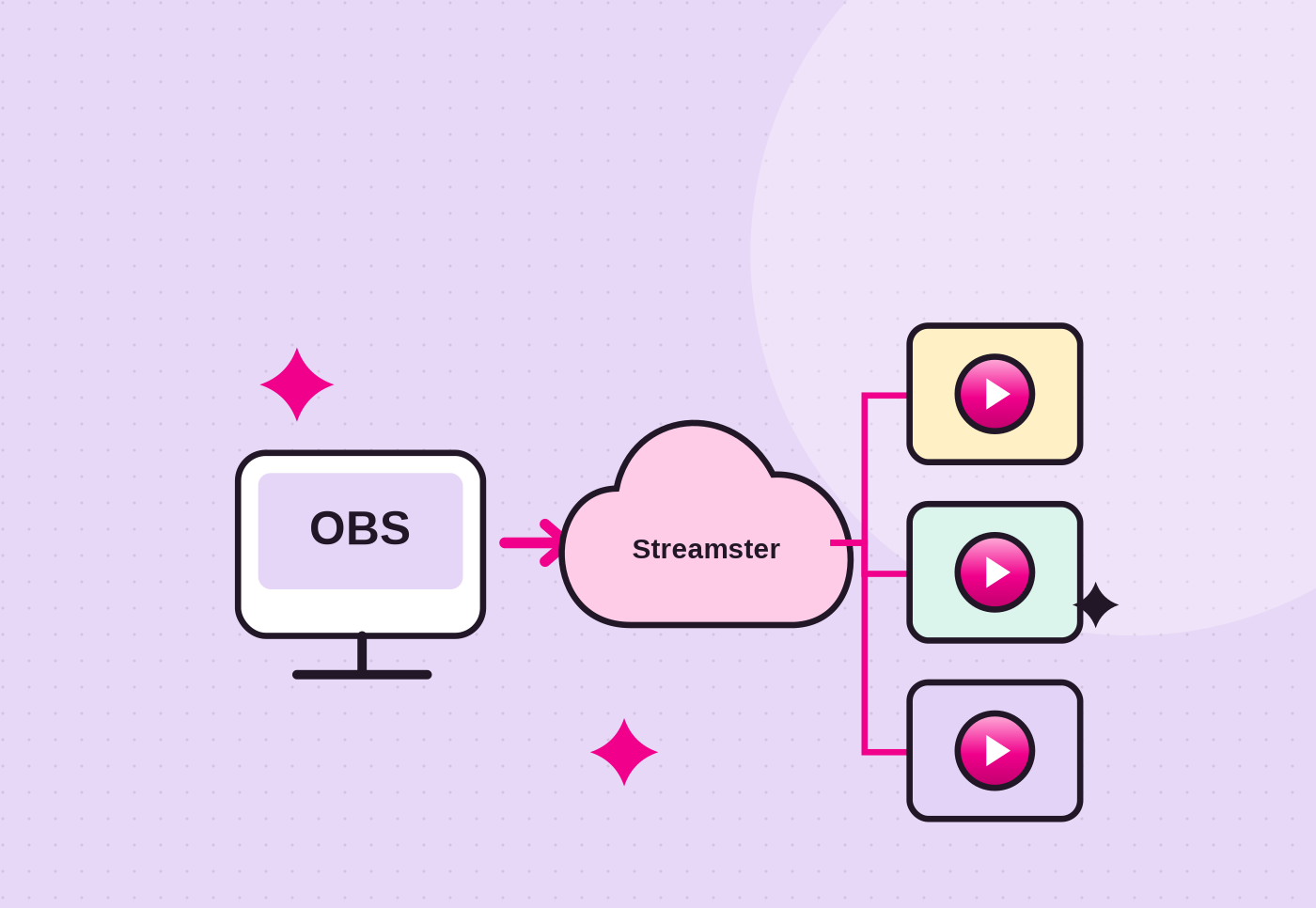
Using OBS or Streamster? CAM4’s external-encoder route provides a stream key in Broadcast → External Encoder → Get Stream Key. Sending video to the service and making the room public are distinct steps: the current Streamster guide also requires Go Live on CAM4.
A final check before going live
Start with a session you can comfortably manage. Afterwards, write down one technical improvement and one idea for the next broadcast. A repeatable routine is more useful than trying to perfect every setting before you begin.
- Email confirmed; broadcaster documents approved for everyone appearing.
- Payment setup reviewed and public profile checked.
- Camera and microphone tested; private data out of the frame.
- The start and stop controls are clear, including each destination if you multistream.