


Camera & lighting
Best Cameras for Streaming: Top 3 Webcams for Every BudgetBest cameras
for streaming.
Three smart picks.
A good stream can start with an affordable camera. Here are three webcams for three different setups — and the lighting, framing and settings that make the purchase worthwhile.
Choose for your stream
If you are starting on Chaturbate, Twitch or another live platform, you do not need to spend your entire budget before your first broadcast. Start with a camera you can comfortably afford, learn what your room needs, then upgrade when you can name the problem the new camera will solve.
My shortlist has three jobs in mind: an inexpensive first setup, a consistent seated shot and a moving presenter. This is an editorial selection based on published specifications, not a hands-on lab test or a ranking of the market's three best-selling webcams. All three connect over USB; they do not need a separate HDMI capture card.
THE QUICK CHOICE
- First streams, limited budget → C920x.
- Mostly seated, want 60 fps and manual control → Facecam MK.2.
- Move around, change positions, need motorised tracking → Tiny 3.
Prices and availability change. Use the Amazon buttons to see the current offer, seller, delivery cost and exact bundle before ordering. Compare the total cost of your setup, including lighting and any microphone or accessories you need.
01 / BUDGET
Logitech C920xAn affordable place to start
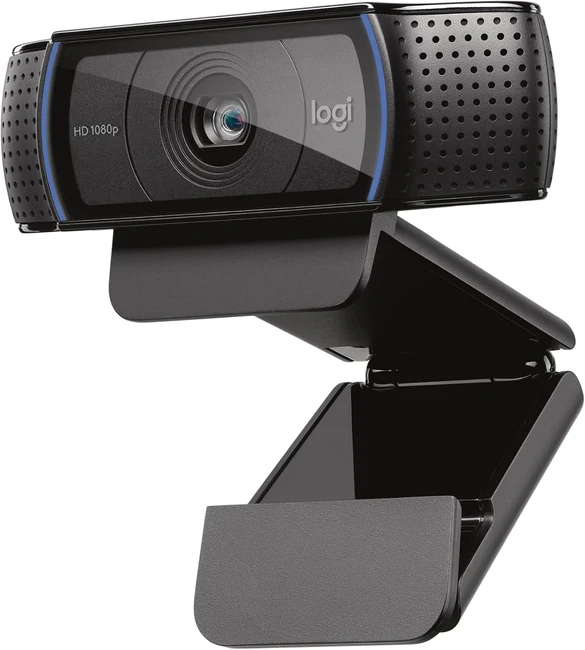
Choose the C920x if you want to get on camera without turning your first stream into an expensive equipment project. Its Full HD image is enough for a clear, well-lit talking shot.
- 1080p at 30 fps; autofocus and a 78° diagonal field of view.
- Two built-in microphones are useful for starting out; a separate mic gives you more placement control.
- USB-A connection and a monitor clip with tripod thread. A USB-C-only laptop needs a suitable adapter.
The trade-off: no 1080p60 and no motorised tracking. In a dim room, invest in soft light before expecting a more expensive camera to fix everything. If focus keeps pulsing in a fixed shot, test manual focus in the available camera controls.
My pick for a first seated stream when you still need budget for lighting. Check the listing carefully: C920x, C920s and C922 are different SKUs.
02 / STANDARD
Elgato Facecam MK.2More control for a fixed setup
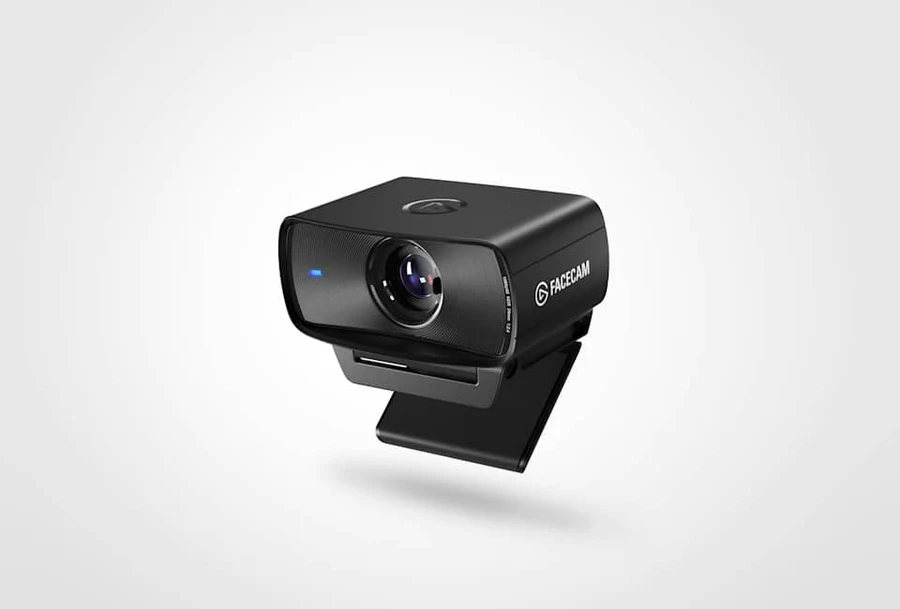
Facecam MK.2 makes sense when your usual position is close to a desk and you want to tune the image instead of leaving every decision to automatic settings.
- Up to 1080p60, with manual exposure and white-balance control in Camera Hub.
- Fixed focus, optimised for approximately 30–120 cm. There is no autofocus motor searching during a seated shot.
- USB-C; USB 3.0 enables uncompressed modes. It has a privacy shutter and stores settings on the camera.
The trade-off: it has no built-in microphone, and fixed focus is a real constraint if you step far away. Digital framing in software does not physically turn the camera. Check available HDR modes in the current Camera Hub and firmware; do not assume every HDR mode works at 60 fps.
My pick for a predictable desk or close-up setup. Before buying, measure the distance from the lens to your normal position.
03 / PREMIUM
OBSBOT Tiny 3For a stream that moves with you
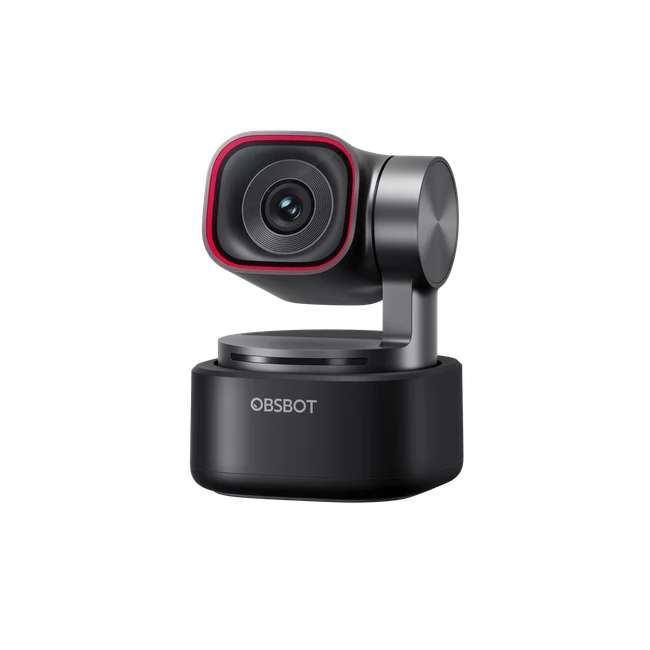
Tiny 3 earns its place here through movement, not just a 4K label. Its motorised head can follow you as you change position, so a more active scene needs fewer manual camera adjustments.
- Up to 4K30 or 1080p120 capture, with a 1/1.28-inch sensor and autofocus.
- Motorised pan and tilt with AI tracking; framing presets, gesture and voice controls offer different ways to run a scene.
- USB connection and built-in microphones. Use a format your streaming software, connection and platform can actually deliver.
The trade-off: tracking can frame something you did not intend. Rehearse your whole movement area and keep personal details out of the background. A 120 fps camera mode does not mean viewers will receive a 120 fps stream.
Remote control: Tiny Smart Remote 2 is not included with the standard camera. It is sold separately and in selected bundles. Amazon packages can differ: check the listed box contents, not only the product photo.
My pick when movement and quick framing changes are central to your concept. For a static talking shot, the extra cost may buy less value than better light.
Compare the three
| Camera | Setup tier | Maximum video | Focus / movement | Best fit |
|---|---|---|---|---|
| Logitech C920x | Budget | 1080p30 | Autofocus · fixed body | First seated streams |
| Elgato Facecam MK.2 | Standard | 1080p60 | Fixed focus · 30–120 cm | Desk / close-up setup |
| OBSBOT Tiny 3 | Premium | 4K30 / 1080p120 | Autofocus · motorised tracking | Moving around the scene |
Maximum camera capture modes, not guaranteed stream output. Plan a separate microphone for Facecam. Tiny 3's handheld remote costs extra.
Light, angle and background
The camera is only one part of the picture. I would not attach a scientific percentage to it: light, distance, exposure and the background can change the result as much as the hardware purchase. Try these four adjustments first.
01 / SOFT LIGHT
Put one diffused light slightly above eye level and about 30–45° to one side. Move it closer or farther until shadows feel gentle. Avoid a bright window directly behind you; curtains are often a cheaper fix than another camera.
02 / YOUR ANGLE
Start with the lens around eye level, then record a short clip from two or three heights. Keep enough distance to avoid an exaggerated close-up. Frame for the movements you actually make, not only a still pose.
03 / QUIET BACKGROUND
Leave some space between you and the wall. Choose one or two details that fit your style, hide cables and remove documents or other identifying information. Coloured background light works better when your main face light stays consistent.
04 / STABLE COLOUR
Once the room is lit, set white balance and exposure where your camera allows it. Watch for clipped highlights and flicker. Test the appropriate 50 or 60 Hz anti-flicker setting for your local lighting, then record again.
Before you go live
Make a one-minute local recording with the software you will use for the real stream. A flattering preview is not enough if motion, sound or the actual output breaks down.
- Select the intended resolution and frame rate explicitly. Start at 1080p30 or a lighter mode if the connection or computer struggles.
- Move, turn your head and bring your hands into frame. Check blur, focus hunting and whether tracking reveals more of the room than expected.
- Speak at your normal volume, then play the recording with headphones. Listen for room echo and clipped audio; mute duplicate microphone sources.
- Test upload stability and dropped frames in your broadcast software. Raise image quality only when the current setup is stable.
Your setup. Your identity.
Once your technical setup works reliably — even an inexpensive one — you can put more energy into the part viewers remember: your image, style and the small scenarios that make a stream feel like yours.
A coherent concept gives members more to connect with and more reasons to come back. That can help you build engagement and tips over time, without any camera or design guaranteeing income. Your bio is a lovely place to start: let it introduce your personality before you even say hello.
I'm Lilo, and I help creators turn that idea into a personal visual style. Message me on Telegram @lilo_chatdesign: we'll discuss your positioning and create a beautiful, memorable bio for free.
LET’S CREATE YOUR BIOQuestions & sources
Which webcam should I buy for my first stream?
Start with the C920x if budget is tight and your shot is mostly stationary. Leave money for soft light and usable sound. Choose Facecam MK.2 for more manual control at a desk, or Tiny 3 when you genuinely need a moving camera.
Do I need 4K for Chaturbate or Twitch?
No. A well-lit, stable 1080p stream can be a sensible starting point. Check the platform's available output modes and your upload capacity. 4K can be useful for recording or reframing, but does not automatically improve the delivered stream.
Can a good webcam replace lighting?
No camera can create light that is not there. Before upgrading, try a soft key light, a better angle and controlled exposure. Compare recordings made under the same conditions.
Does OBSBOT Tiny 3 include a remote?
The standard camera pack does not include Tiny Smart Remote 2. Buy it separately or select a bundle that explicitly lists it.
Sources & buying notes
Specifications checked against manufacturer information on 19 October 2026. Product images identify the selected models; the cover is an original editorial illustration. This guide uses ordinary Amazon product links without an Amazon affiliate tag. Follow a product link for its current price, availability and delivery terms.
BUILD THE REST OF YOUR SETUP