GETTING STARTED · PRACTICAL GUIDE
How to register as a BongaCams model
BongaCams uses BongaModels for performer registration and account management. I would begin there, with the right account type and prepared documents, then set up the public profile and broadcast tools. That keeps the first session focused on the stream instead of unfinished registration steps.
Register as a BongaCams model →
1. Choose the account that matches how you will work
Use the model-registration link below. BongaModels distinguishes individual performers, couples or groups, and studios. Choose the option that describes the people and organisation actually involved; an individual account is not a shortcut for unverified guests.
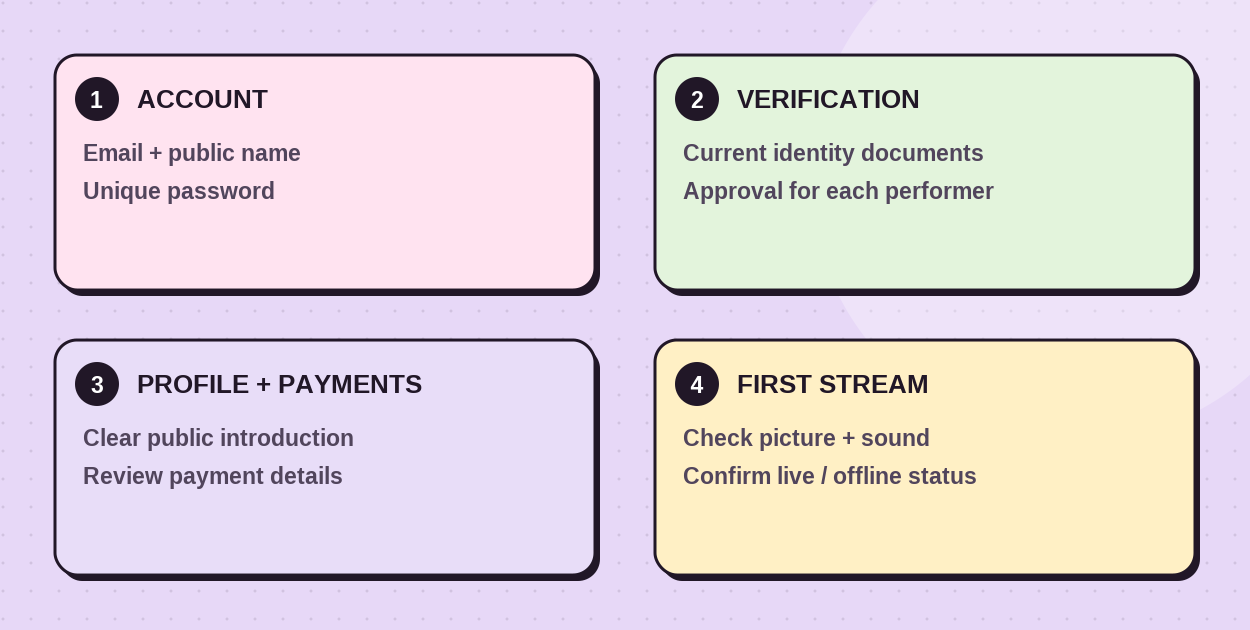
Pick a public nickname, use a mailbox you control and create a unique password. Keep your public identity separate from the legal details required for verification and payments.
2. Prepare the verification material
The standard registration guide asks for identity documents, a face photo and a photo of you holding the ID beside your face. Follow the live form for accepted documents and additional checks: its current identity provider may also require a liveness check.
Take the pictures in even light. Keep the document readable and all required edges visible. Upload the requested files through the official account interface, without filters or retouching. Everyone who will appear needs to complete the platform’s verification requirements.
- Check that legal names and dates match the document.
- Use original, current documents and the requested file format.
- Keep account credentials and verification files private.
3. Complete registration and check approval
Fill in the personal details requested by BongaModels, review the agreement and confirm your email. The official FAQ describes a standard registration route and a Fast Track option with automatic identity verification where available. Use the route offered to your account; neither the label nor a referral link replaces the required checks.
Watch the account status and messages from the verification team. If a file is rejected, correct the stated problem rather than repeatedly submitting the same image.
4. Prepare your profile and payment settings
Before broadcasting, add your profile picture, a concise introduction and a manageable schedule. BongaModels provides profile and broadcast tools in the account, so you can start with its own controls and expand the setup later.
Review the payout methods shown for your country and account type. Confirm the payee details and current minimum for the method you select. Studio and individual arrangements can differ, so use the terms displayed for your own account rather than another model’s screenshot.
5. Choose browser broadcasting or an encoder
For the browser route, open Broadcast Yourself, allow camera and microphone access and check the preview before starting. Make a local recording beforehand so that microphone level and framing are already settled.
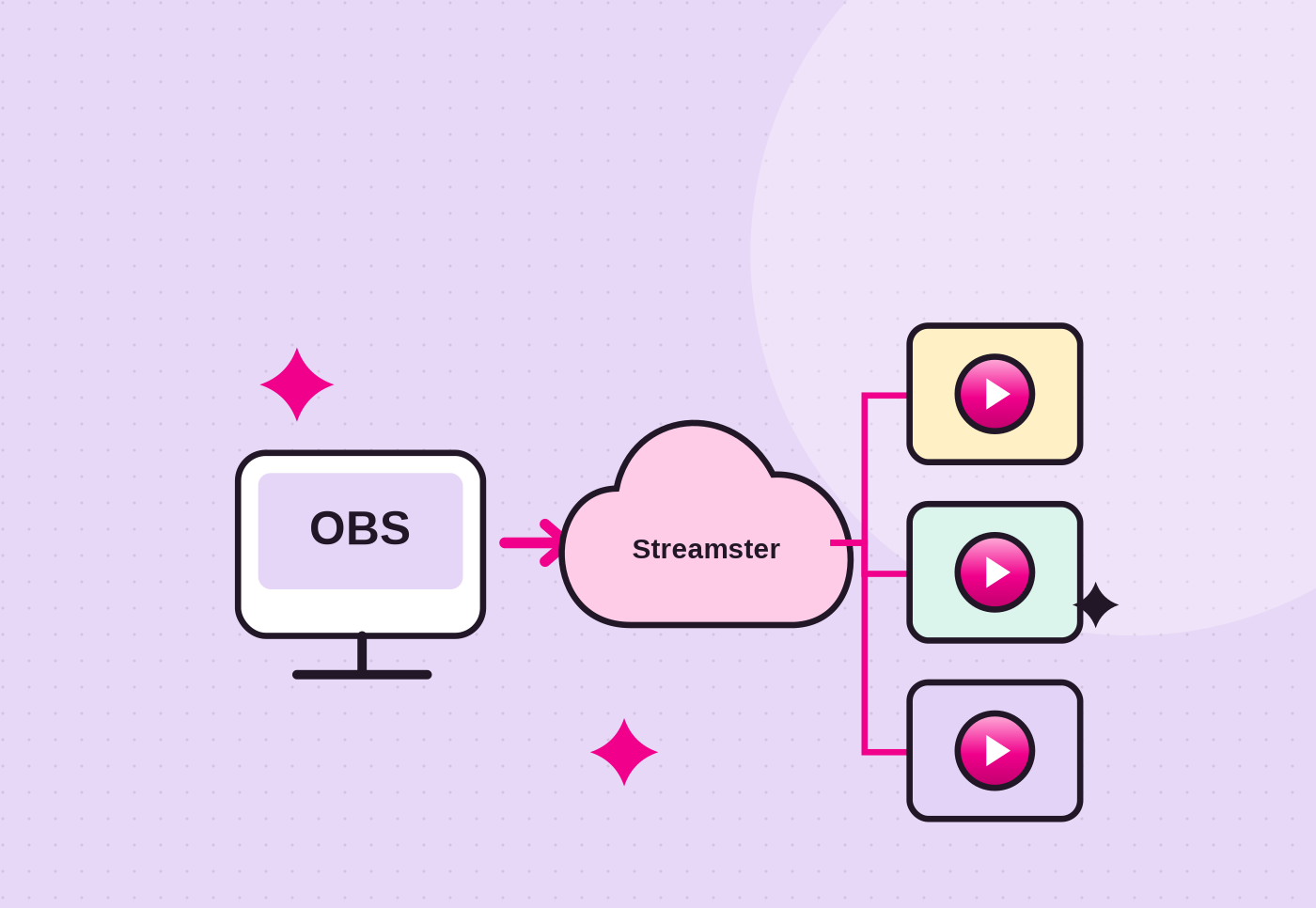
For an external encoder, the Streamster instructions use Broadcast Yourself → External Encoder, where you copy the stream key. Add BongaCams as a channel in Streamster and enter that key. Once the feed is ready, the guide calls for Start Streaming on BongaCams to make the stream public.
Plan the first fortnight
BongaModels’ FAQ describes 14 days of new-model promotion beginning with the first broadcast for eligible models who have not previously registered. Check the current eligibility and start date in your account, then choose a first-stream date you can support with a realistic schedule.
Prepare a short opening, a few topics you enjoy discussing and a clear next broadcast time. After each session, note what worked technically and which conversations felt natural. Those notes give you something concrete to improve next time.